• English
  • Deutsch
  • Español
  • Français
  • Italiano
  • 日本語
  • Português (Portugal)
  • Österreich(EUR €)
  • Belgien(EUR €)
  • Kroatien(EUR €)
  • Zypern(EUR €)
  • Tschechien(CZK Kč)
  • Dänemark(DKK kr)
  • Estland(EUR €)
  • Finnland(EUR €)
  • Frankreich(EUR €)
  • Deutschland(EUR €)
  • Griechenland(EUR €)
  • Ungarn(HUF Ft)
  • Irland(EUR €)
  • Italien(EUR €)
  • Litauen(EUR €)
  • Luxemburg(EUR €)
  • Malta(EUR €)
  • Niederlande(EUR €)
  • Norwegen(USD $)
  • Polen(PLN zł)
  • Portugal(EUR €)
  • Slowakei(EUR €)
  • Spanien(EUR €)
  • Schweden(SEK kr)
  • Schweiz(CHF ₣)
  • Großbritannien(GBP £)
  • USA(USD $)
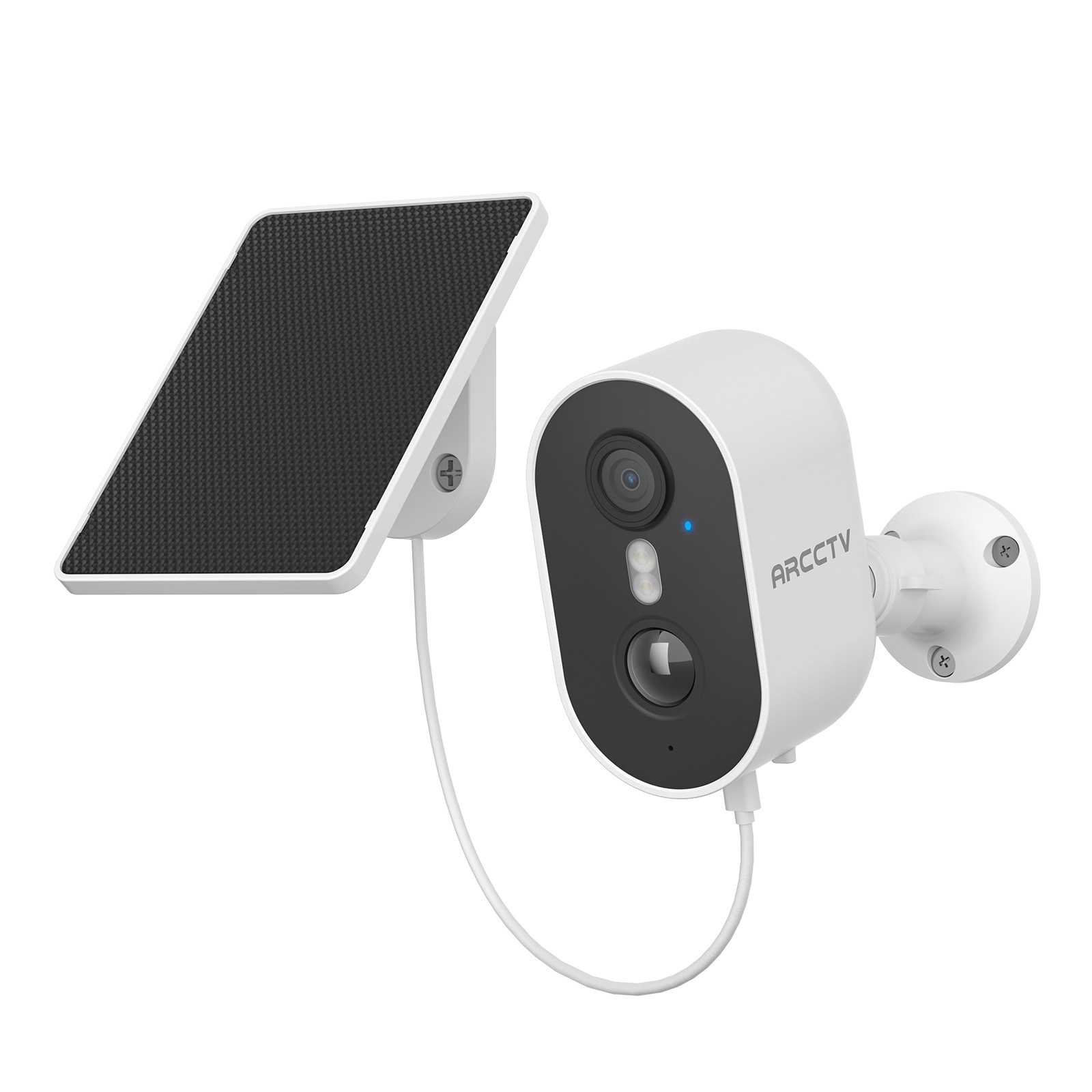
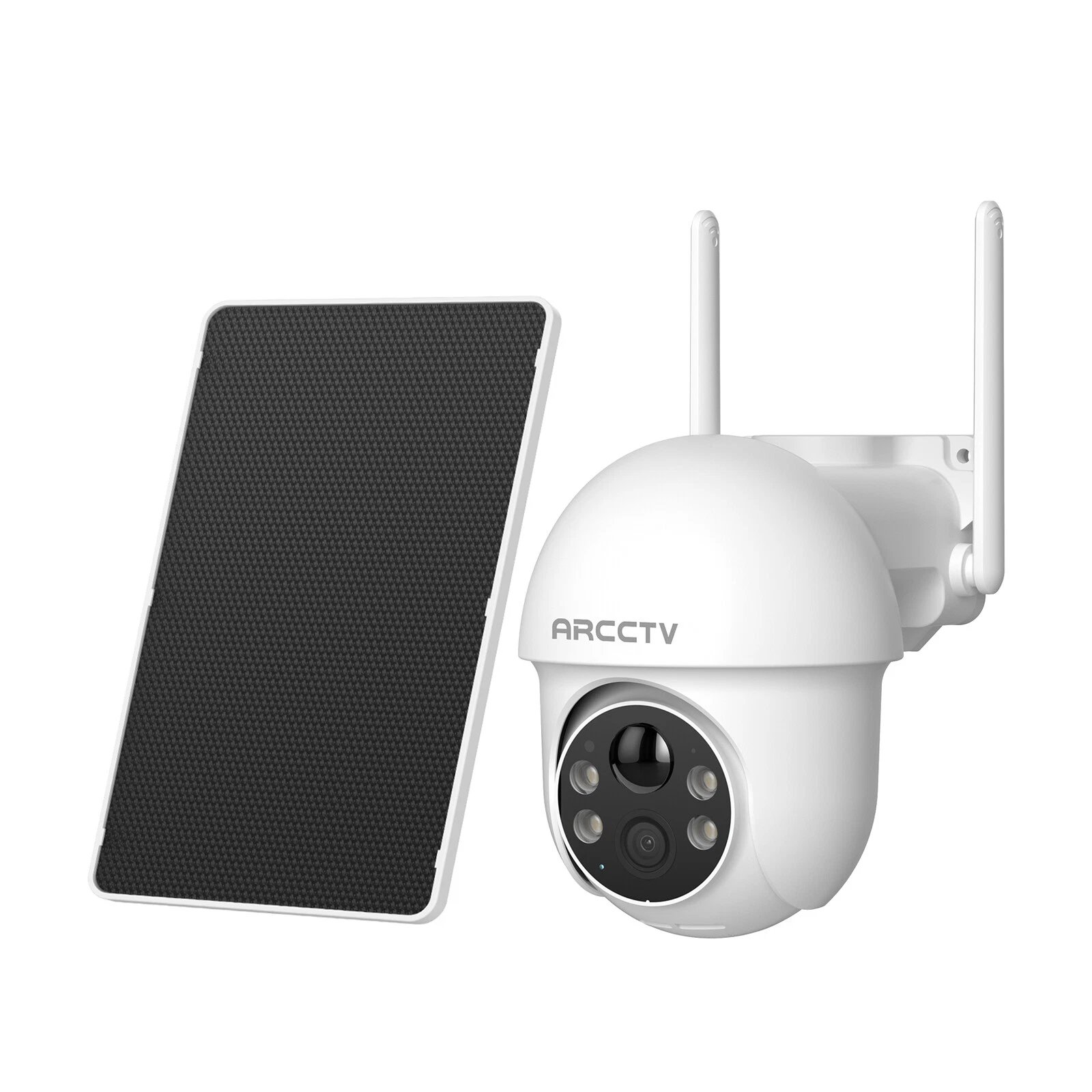
(ARCCTV-Solar Battery Camera) FAQ

1. SN Number

1.1- How to Find the SN/Device ID on your Camera?
The SN (Serial Number) for your camera is a 10-digit number that serves as the device ID. It is used for both single cameras and NVR systems and can be found on the camera, app, or NVR. The camera is compatible with the Eseecloud and ARCCTV apps.
 
  • On the Camera: The 10-digit device ID (e.g., 6443976728) is embedded within this string.
  • On the App: Check the device listing in the app (as shown in the first image), where the ID (e.g., 6658620885 or 665776113) appears at the top of the screen.
1.2- How to download the APP?

Search for  “ARCCTV” app in App Store (iOS) or Google Play (Android) and download it.

2. APP Set Up

2.1- How to Set Up Wi-Fi for the Camera or Add It to the ARCCTV?
2.2- Which Phone App Can I Download for This Wireless Camera?
You can choose ARCCTV app. You can download these apps on App store or Google play.
2.3- Failing to Scan the Camera QR Code
If you can’t scan the QR code:
  1. Ensure the camera is powered on—check for the light indicator on the front.
  2. Enlarge the QR code by tapping the screen and hold the camera 10-15cm away to scan it. See this video: https://drive.google.com/file/d/1DnrHNm0AuKMC7Sx5dfYbNK9g7l71kf6J/view?usp=share_link.
  3. Wait for a prompt tone from the camera before tapping "Next".
2.4- How to Share My Camera with Family or Friends / Can It Be Used by Multiple Devices?
  • Method 1: Share by QR Code (ARCCTV):
    • Download the same app on another device (Device B) and sign up with a different account.
    • On your device (Device A), tap "Share" on the main screen.
    • Set a password to generate a QR code on Device A.
    • On Device B, tap the "+" icon and scan the QR code.
  • Method 2: Share by Cloud ID:
    • Share the 10-digit device ID (from the app) and password with your friend. They can add it by:
      • Opening the app, tapping "+" > "Other ways to add" > "Add by ID/IP".
      • Entering the cloud ID (device ID), a preferred name, and the password (default is blank).
  • Method 3: Invite Shared Users:
    • Use the ARCCTV app to scan the camera’s QR code or add it using the device ID.
Note: Only one account can use the camera at a time unless shared via these methods.
2.5- How Many Users Can I Share the Camera With?
You can share your camera with an unlimited number of users. However, only 3 users can live view or control the camera at the same time.
2.6- Can I View Multiple Cameras at the Same Time on My Phone?
Yes, you can view multiple cameras simultaneously:
  1. Open the app and tap "Group" at the top.
  2. Click "Add group" and select the cameras you want to view together.
2.7- Is There a Limit to the Number of Cameras in a Group?
Yes, you can add up to 16 cameras in one group. Swipe left to see the next page if you have more cameras.
2.8- How to Connect Your Camera with Alexa?
For JIUAN cameras with version 3.52 or above, Alexa is supported (if the "Alexa" function isn’t visible in the app, it may need to be enabled—provide your Device ID or virtual ID to support for assistance):
  1. Download the Alexa app and the Eseecloud app.
  2. Add your camera in the Eseecloud app.
  3.  
    Additional guide: https://drive.google.com/file/d/1B2MvzcUWRKBiNoB7fpxWSntcJlVLpbpf/view?usp=sharing (content not displayable outside Feishu).
Alexa is available in: Italy, Germany, US, United Kingdom, Canada, Brazil, Spain, France, Japan.

3. Password

3.1- What Should I Do If I Forgot the App Account Password?
If you forgot your app account password:
  1. Tap "Forgot Password" on the login screen.
  2. Enter the email or mobile number you used to register, which you can still access.
  3. Tap "Confirm".
  4. Check your email or mobile for the verification code sent to you.
  5. Return to the app.
  6. Enter the "Verification Code".
  7. Set a new password, then retype it to confirm.
  8. Tap "Confirm" to save the new password.
3.2- Why Isn’t My App Receiving a Verification Code?
If you’re not getting a verification code:
  1. Ensure SMS message permissions are enabled for the app on your phone.
  2. Check your email’s spam or trash folder for the code.
  3. If it still doesn’t arrive, register a new account.
3.3- What Should I Do If I Forgot the Camera Password?
If you forgot your camera password:
  • The password cannot be retrieved. You’ll need to remove the camera from the app, reset it, and add it again. The default password for the camera is blank.
3.4- How to change the camera passwords?
Please check the following steps:
  1. Open Advanced Settings
  1. Click "Setup password"
  1. Then, you can change the password
3.5- Can This Camera Be Linked to a PC Using Windows 10 via an App?
Yes, for (ARCCTV), you can use Eseecloud. Download it here: https://drive.google.com/file/d/1INBCVB_Jfn_gTSe2ZZNlcy357-MsPCvW/view?usp=sharing.

4. Network / Charging issue

4.1- Will the camera record if it’s not connected to Wi-Fi?
No, the camera will only record when it is connected to a Wi-Fi network.
4.2- Troubleshooting Wi-Fi Connection Issues with Your Camera
  • Double-check your Wi-Fi password for accuracy.
  • Move the camera closer to the router to improve the signal.
  • Reset the camera and delete it from the app, then set it up again.
4.3- Can the Built-In Battery Be Purchased Online?
No, the built-in battery cannot be replaced or purchased separately. If it’s defective, we’ll replace the entire camera as long as it’s within the warranty period.
4.4- If the Camera Cannot Be Charged with a Solar Panel?
Hello! If your camera’s battery is very low, please use a USB charger (5V 1A-2A—not a flashing charger) to charge it:
  • Red Light: Charging in progress.
  • Blue Light: Fully charged.
If the solar panel still isn’t charging the camera, check the connection:
If it still doesn’t work, please send us your device information, Virtual ID, or SN number. Our technicians will check the charging status and motion detection trigger frequency in the background, as frequent wake-ups can drain the battery quickly.
4.5- Why Can’t the Camera Charge with the USB Charger?
If your camera isn’t charging with a USB charger, try this:
  1. Ensure the charger is 5V 1A-2A—fast or high-speed chargers won’t work and may damage the battery.
  2. If the battery is fully drained, plug it into a laptop’s USB port to charge.
  3. If the camera remains unresponsive, record a short video showing it plugged into different 5V 1A-2A sockets, pressing the power button for 6 seconds with no lights. If the video confirms no response or lights, we’ll proceed with a replacement if it’s within warranty.
Which Kind of USB Charger Can Charge the Camera?
Use a 5V 1A-2A mobile phone charger. Avoid fast or high-speed chargers, as they can damage the camera’s battery.

5. Software / Record issue

5.1- Is Your Camera ONVIF/RTSP Compatible?
Yes, your camera is ONVIF/RTSP compatible, but this feature is only supported by plug-in cameras and NVR systems. ONVIF is an open standard protocol that enables cameras to communicate with each other and network recording devices, though compatibility versions may limit advanced features like motion detection to basic video functionality.
5.2- Why Your Firmware Upgrade Fails with "Upgrading Failed Pls Retry Later"?
If your firmware upgrade fails with a "upgrading failed pls retry later" message, it’s likely because your camera’s ID needs to be added to the whitelist for online upgrades. For ARCCTV app users with a single camera:
  • Ensure your camera’s Device ID is registered with support to be added to the whitelist. Contact support with your Device ID to enable online upgrades.
5.3- Does This Camera Record Continuously with an SD Card?
No, if your camera is battery-powered, it won’t record continuously even with an SD card installed—it only records when someone passes by. However, if your camera has a power supply, you can set it to record continuously or schedule recording times through the app.
5.4- Does This Camera Record Continuously with Cloud Storage?
No, your camera does not record continuously with cloud storage. Our cloud storage only supports event recording, capturing footage when specific events (like motion detection) occur.

6. SD Card issue

6.1- Why the SD card can't record the video?
If your SD card isn’t recording video, follow these steps to troubleshoot:
  • Format the SD Card:
    • Insert the SD card into a card reader and connect it to your computer.
    • Open the Start Menu and click "This PC".
    • Right-click the USB Drive and select "Format".
    • Choose FAT32 or exFAT from the file system drop-down menu if it’s not already selected.
    • Click "Start" then "OK" to format.
  • Insert the SD Card:
    • Power off the camera before inserting the SD card.
    • Remove and reinsert the SD card to ensure it’s properly seated.
  • Check Compatibility:
6.2- Can I View and Format the SD Card Using the Phone App?
  • If the camera recognizes the SD card, open the app, go to "Settings" > "Recording Management" > "Format" to format it.
  • If formatting fails in the app, insert the SD card into your computer to format it.
6.3- Does the Camera Come with an SD Card?
No, the camera does not include an SD card. You’ll need to purchase one separately. Follow these steps:
  • Buy a Micro SD card with a capacity of 8-128GB, formatted as FAT32 or exFAT, and Class 10 speed.
  • Insert it into the camera after powering it off to ensure proper recognition.
6.4- What Format Does the Camera Support for SD Cards?
The camera supports Micro SD cards in FAT32 or exFAT format, Class 10, with a capacity between 8GB and 128GB.
6.5- Why Does My Camera Show an SD Card Unavailable?
  • Insert the SD card only when the camera is powered off to avoid issues.
  • Ensure the SD card is formatted as FAT32, Class 10. Format it on your computer before inserting it into the camera.
6.6- How do I insert the SD card?
Please refer to the attached image to install the SD card.
6.7- What Should I Do If the SD Card Falls Into the Camera?
6.8- How Do I Copy Videos from the SD Card to My Computer?
  • Insert the SD card into a card reader and connect it to your computer, then copy the videos to your desired location.
6.9- What Software Can I Use to Play the Videos?
You can use VLC or Pot Player to play the videos from the SD card.
6.10- Do I Need to Manually Delete Videos from the SD Card?
  • No, when the SD card is full, the camera will automatically delete the oldest recordings, so manual formatting isn’t required.
  • You can delete videos from a specific day (but not a specific time) by opening the app, tapping "Live View" > "History or Cloud", selecting the day, and choosing "Delete".
6.11- What Should I Do If My SD Card Can’t Be Pulled Out of the Camera?
  • Try removing the SD card from the slot using small tweezers.
  • If it still won’t come out, send your order number and shipping address to Support@anran-cctv.com, and we’ll send a replacement.
6.12- What Should I Do If the SD Card Stopped Recording After Working Normally?
  • The SD card might be full and not overwriting automatically. Format it in the app (recommended to back up important videos first).
  • Power off the camera before reinserting the SD card.
6.13- List of recommended SD cards.
SD Card Compatibility List
Brand Specification
Capacity Capacity Level Interface Class Level Bit Width File System
Kingston 8GB HC SD 4 4-bit FAT32
32GB HC SD 10 4-bit FAT32
64GB XC SD 10 4-bit FAT32
128GB XC SD 10 4-bit FAT32
OV 16GB HC SD 10 4-bit FAT32
32GB HC SD 10 4-bit FAT32
64GB HC SD 10 4-bit FAT32
128GB XC SD 10 4-bit FAT32
SanDisk 8GB HC SD 4 4-bit FAT32
16GB HC SD 10 4-bit FAT32
32GB HC SD 10 4-bit FAT32
64GB XC SD 10 4-bit FAT32
128GB XC SD 10 4-bit FAT32
Transcend 32GB HC SD 10 4-bit FAT32
PNY 32GB HC SD 10 4-bit FAT32
SAMSUNG 32GB XC SD 10 4-bit FAT32
128GB XC SD 10 4-bit FAT32
BanQ 64GB HC SD 10 4-bit FAT32
明澈 16GB HC SD 10 4-bit FAT32

7. Cloud Service issue

7.1- Do You Have to Use Cloud Storage?
No, you don’t have to use cloud storage. Both SD card and cloud storage are optional for your camera.
7.2- How to Purchase Cloud Storage?
To get more cloud storage, follow these simple steps:
  1. Open the app on your device.
  2. Go to the live camera feature.
  3. Tap the settings icon in the top-right corner.
  4. Select "Cloud" and follow the prompts to purchase your storage plan.
7.3- Do I Have to Pay a Monthly Fee to Use the Camera?
Nope! If you use a micro SD card to record locally, you can use the camera completely free—no monthly fees required.
7.4- How Much Is the Cloud Subscription?
The cost of your cloud subscription depends on the plan and duration you choose, as shown in the table below. Pricing varies slightly between Android and iOS:
  • 30-day motion detection video:
    • Android: $3.49 for 30 days or $34.90 for 1 year
    • iOS: $4.99 for 30 days or $49.90 for 1 year
  • 15 days of 24-hour video recording:
    • Android: $4.99 for 30 days or $49.90 for 1 year
    • iOS: $6.49 for 30 days or $64.90 for 1 year
Additional Info:
  • For battery cameras, only alert recording (motion detection) is supported.
7.5- Is There Any Other Way to Pay for Cloud Storage?
Currently, PayPal is the main payment method supported for cloud storage. Some users may also be able to use Apple Pay or Google Pay, depending on their device—give it a try to see if it works for you!
7.6- Will Cloud Storage Be Deleted, and Can I Manage It?
Yes, your cloud storage will be automatically deleted after the subscription expires. Before that happens, you can download or watch your recordings at any time. You can also manually download them to keep your files safe!
7.7- Why Isn’t My Camera Recording to the Cloud?
If your camera isn’t recording to the cloud, try these steps:
  1. Make sure you’ve purchased a cloud subscription.
  2. Check that motion detection is turned ON.
  3. Increase the sensitivity to the maximum level.
  4. Ensure your Wi-Fi signal is above 80% in the camera settings.
  5. Look at your cloud recordings—if there’s nothing there, please share a screenshot with us.
  6. Take the camera down, move it closer to the router, power it off and on, then wait 5 minutes. Walk in front of it to test if motion is recorded in the cloud.
  7. If it still doesn’t work, please provide your device ID and order number, and we’ll escalate it to our advanced support team.
Let us know how it goes or if you need more help!
7.8- How can I download the video?
Follow these easy steps to download your videos:
  1. Open the app on your device.
  2. Select the camera you want to access.
  3. Tap on "Playback."
  4. Tap "Cloud" at the top of the screen.
  5. Tap "Download Playback Video."
Click "downloaded playback video", it will jump to the interface of selecting video, just download it, and it will be saved to the phone album.
 
Tip: You can also download videos from cloud storage or local storage using the same method, and they’ll all save to your local album for easy access.
7.9- Can I Transfer My Cloud Service to Another Camera?
Yes, you can transfer your cloud service to another camera! Here’s how:
  1. Let us know the device IDs for both cameras:
    1. New Camera: [Please provide the ID]
    2. Old Camera: [Please provide the ID]
  2. The transfer will take about 24-48 hours, and we’ll notify you once it’s complete.
  3. You can check the status by logging into the app.
Just send us the device IDs, and we’ll handle the rest for you!

8. Motion Detection issue

8.1- Why Can't the Camera Detect a Person at Night?
At night, your camera’s sensitivity might drop, making it harder to detect people. Here are some possible reasons and fixes:
  • Sensor Issue: Wave your arms in front of the camera to test if the sensor responds.
  • PIR Issue: The camera might not recognize people due to a PIR (motion detection) problem.
  • Power Saving Mode: Check if the camera is in power-saving mode, which can reduce detection.
Try these steps and see if it helps!
8.2- Will the Camera Follow People? (Auto Tracking Function)
Yes! All plug-in cameras (P2 models) can be set to automatically track movement. Just enable the auto-tracking function in the settings to get started.
8.3- What Distance Will It Detect Motion?
For plug-in cameras, motion detection works by monitoring changes in the image. When someone walks in front of the camera, the software compares pixel differences between frames. If the change exceeds a set threshold, it triggers an alarm. The exact distance depends on the scene and sensitivity settings, so adjust them to suit your needs!

9. Alarm issue

9.1- How to set alarm notifications?
Please follow the step guidance image under blow.
  1. Open the Setting page, Click and open the Notification Setting
  2. Make sure than "Allow Notification" setting is OPEN.
9.2- Why Is My camera’s light flickering?
If your camera’s light keeps flickering, try these steps to fix it:
  1. Turn off the light manually and turn it back on.
  2. Power cycle the camera by unplugging it, waiting a moment, then plugging it back in.
  3. If the problem continues, reset the camera to its factory settings.
  4. If it’s still flickering, please record a short video showing the issue and share it with us so we can assist you better!
9.3- Why Can’t my App receive Alarm Information?
If your app isn’t receiving alarm notifications, it might be due to a few settings. Here’s how to check and fix it:
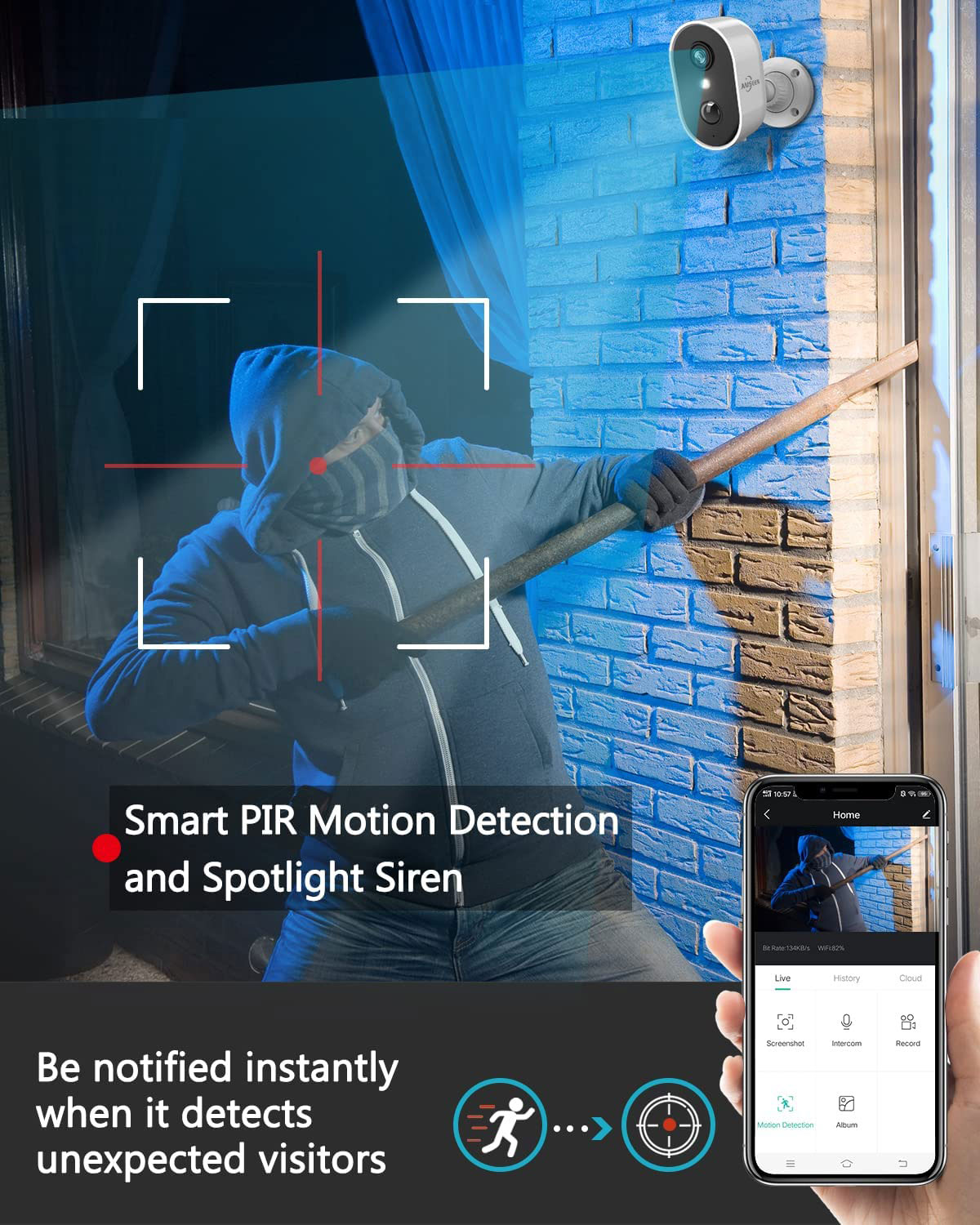
  1. Ensure the camera’s motion detection is turned on (at night, the white light will only turn on when a person is detected).
  2. Make sure the app’s message push notifications are enabled.
  3. Check that your phone’s background message push settings are turned on.
Follow these steps, and you should start receiving alarms. Let us know if the issue persists!
Further more, you can check "News" if there are pictures and videos in "Alarm message"
9.4- How to set the time period alarm?
Go to device > ...>setup> smart detection > alarm time settings > click number (0h means the time period between 0:00-1:00) > copy (select the date you need) > confirm > save the setting "confirm" when exiting
9.5- How Do I Remove Alarm Messages?
To clear alarm messages, just follow these steps:
  1. Go to the "Me" section in the app.
  2. Tap "Settings."
  1. Select "Clear Cache" and then choose "Clean Up Immediately."

10. Two-way audio issue

10.1- Why Can’t I Hear Sound with the Two-Way Feature on My Camera?
If your phone can’t hear sound through the camera’s two-way feature, try these steps:
  1. Go to your phone’s system settings and turn on all microphone permissions for the "CloudEdge" app.
  2. Ensure your phone’s sound is turned on.
  3. Check that your network connection is strong.
  4. If the issue persists, reset the camera, re-add it, or try connecting with another phone.
Give these a go, and let us know if it works!
10.2- What Should I Do if the App Is Making Too Much Noise?
If the app is too noisy, here’s how to quiet it down:
  • Mute the sound when viewing live footage or playing back videos.
  • Keep your phone or other electronic devices away from the camera, as their magnetic fields can interfere with the microphone.
  • Consider changing the camera’s installation position to reduce noise.
Try these tips and see if it helps!
10.3- Why Is My Single Camera Making Noise?
If just one camera is making noise, follow these steps:
  1. Move your phone or other electronic devices away from the camera, as their magnetic fields might interfere with the microphone, or adjust the camera’s position.
  2. Restart the camera and check again.
  3. Reset the camera if the problem continues.
  4. If it’s still an issue, please send us a video, your order number, and device ID, and we’ll escalate it for you.
Let us know how it turns out!
10.4- What Should I Do if the Two-Way Audio Isn’t Working Normally?
If the two-way audio isn’t functioning properly, try this:
  1. Check that your phone’s sound is working.
  2. Make sure the speaker is on when you talk through the app.
  3. If it still doesn’t work, please record a video and let us know—we’ll look into it further.
Hope that fixes it—reach out if you need more assistance!
10.5- Can I Turn Off the Audio on This Camera?
Yes, you can turn off the audio! Just look for the mute button in the phone app and tap it to silence the camera.

11. Night Vision issue

11.1- Why Does My Camera’s IR Light Keep Flashing?
If your camera’s IR light is flashing, it might need a firmware update. Please send us your device ID, and our technicians will push the update to fix the issue. We’ll get back to you once it’s handled!
11.2- Why Is My Camera’s Night Image Completely Black?
If your camera’s night image is completely black, here’s what to check:
  1. The camera’s battery might be low. Fully charge it and test again.
  2. If the IR LED still doesn’t light up, please send us a picture, along with your order number and shipping address, and we’ll arrange a replacement for you.
11.3- What Should I Do if My Camera’s Night Vision Isn’t Working Well?
If your camera’s night vision isn’t performing as expected, try these steps:
  1. Check if you see red lights when the camera is powered on in a dark environment—this indicates the night vision is active.
  2. If it still doesn’t work, try using a different power supply.
  3. If the issue persists, please contact us at support@anran-cctv.com with your order number, serial number (SN), and a picture of the setup for further assistance.
Example Insight: From a sample picture, the night vision might look normal, but if the camera is mounted too high, the effect can suffer. For instance, installing it too high can weaken night vision and motion detection. We recommend mounting it 2-3 meters (about 9 feet) from the ground. Let us know how high your camera is—if it’s too high, lowering it could improve performance!
11.4- How Can I Make the Spotlight/White Light Turn On Automatically at Night?
To enable the spotlight or white light to turn on automatically at night on your CX camera (e.g., CX410 or similar models), you can activate the "Smart Night Vision" or "Full Color Night Vision" feature.

12. Camera Picture issue

12.1- Why Is the Picture Blurry?
The reason for a blurry picture depends on whether you’re seeing it in the app or on an NVR. Let’s figure it out together!
If the Picture in the App Is Blurry:
  • Check the Camera Lens: Is it dirty or obstructed? Clean it gently and send us a photo of the lens to check its condition (look for dirt or corrosion).
  • Network Issues: If the image has a residual shadow, your network might be weak. Try connecting to a different network.
  • App Version: Check if an update is available by going to "Me" > "Version" in the app.
  • Help Us Help You: Please provide photos of the camera lens, its installation location (to see if the environment affects it), and a screenshot of the device information page (including the device ID) for our technical team to analyze.
If the Picture on the NVR Is Not Clear:
  • Check the Camera Lens: Is it dirty or blocked? Clean it and send us a photo to assess its condition (dirt or corrosion).
  • Cable Connection: Ensure the cable is securely connected. Send us a photo of the connection.
  • Screen Test: Try using a different screen to rule out third-party issues.
  • Help Us Help You: Please provide photos of the camera lens, its installation location (to check environmental impact), a photo of the cable connection, and a screenshot of the device information page for our technical team to review.
12.2- Why Does My Camera Show a Pink/Purple Picture?
If your camera is displaying a pink or purple image, it might be due to a problem with the camera’s filter. Please send us a picture of the issue so we can review it. If the problem can’t be fixed, we’ll arrange a replacement for you!
12.3- The Picture Isn’t HD, What Should I Do?
If your picture isn’t in HD, just open the phone app and select the "HD" option to improve the quality!
12.4- What Should I Do if the Camera Can’t Be Previewed Properly?
If the camera preview isn’t working, check these steps:
  • Ensure your network is stable. Move the camera closer to the router to test.
  • If the issue persists, reset the device and add it back to the app.
12.5- What Should I Do if I Can’t View the Screen on the Mobile App (Screen Is Green or Other Colors)?
If your mobile app screen shows green or unusual colors, this issue is currently specific to Apple iOS systems. Try downloading this test version to fix it: https://testflight.apple.com/join/hOv3kB1t. Install it and see if it resolves the problem!

13. Hardware issue

13.1- How Long Is the Supplied Cable from Camera to Solar Panel?
The cable supplied from the camera to the solar panel is 3 meters long. Additionally, there are two types of solar panel interfaces:
  • Micro USB interface or Type C interface, with the USB cable length being 1 meter.
For replacement solar panels, all future arrangements will use the original Type-C interface, and a Type-C to Micro-USB converter will be included. Please note this when handling replacement tickets, as some customers might ask about this after receiving a replacement. Make sure to explain it clearly!
13.2- Why Does My Camera Have Two Indicators?
Your camera has two indicators for different purposes:
  • The work indicator (near the lens) shows when the camera is active or recording.
  • The charging light (near the charging port) indicates when the camera is charging.
13.3- When I Press Reset for 4-5 Seconds, No Flashing Red Light Appears
If you press the reset button for 4-5 seconds and don’t see a flashing red light, don’t worry—it’s not always required. Here’s what to expect:
  • You should hear a beep sound.
  • Four lights will turn on.
  • The camera may enter a beeping state, which is normal. Some models don’t flash infrared lights during this step.
You can connect to the ARCCTV app as usual and download it. Since this might be your first time using the app, check out this video for guidance: drive.google.com/file/d/1i8T60rLV0dy5mkiL4Dqk9xkyKbe72WlB/view?usp=share_link. Feel free to reach out if you have more questions!
13.4- The Camera Only Shows a Red Light and Won’t Flash, What Should I Do?
If your camera’s light stays red without flashing, try this:
  1. Long-press the reset button for 15-20 seconds.
  2. If it still doesn’t work, email us to get the upgrading software (please include your device ID).
13.5- (PTZ) The Camera Can Only Pan but Not Move Up/Down, What Should I Do?
If your PTZ camera only pans side to side, try this:
  • Gently swing the camera up and down by hand to test manual movement.
  • Power off and on the camera, then reset it.
  • Remove the camera, set it up again with Wi-Fi next to the router, and test its rotation.
  • If it’s still not fixed, gather your device ID and order number, then email us to escalate the issue.

14. Other

14.1- What Should I Do if I Want to Replace the Camera Battery? (Within or Beyond Warranty)
We generally don’t recommend replacing the battery yourself, but if you’d like to proceed, here’s how it works based on your purchase platform and warranty status:
  • Amazon:
    • Within Warranty: If the battery is defective, we’ll replace it with a new camera at no cost (due to a product issue).
    • After Warranty: We can offer you a discount to purchase a new camera.
  • eBay:
    • Within 3 Months: Free replacement plus free shipping.
    • 3 Months to 1 Year: Free replacement with a $15 shipping fee.
    • 1 Year or More: We’ll provide a discount for a new camera.
How We Determine If It’s a Product Issue:
  1. Use a power adapter to charge the camera fully for 8 hours.
  2. Record a video showing you long-pressing the power button for 3-5 seconds (you should hear a tone) and then holding the reset button for 10-13 seconds.
  3. If the camera doesn’t respond, it’s likely a battery or motherboard issue, confirming a product problem.
14.2- How Do I Install the Camera on the Wall?
To install your camera on the wall, follow these steps:
1. Make sure you’ve set up the Wi-Fi for the camera before mounting it.
2. Tape the installation sticker (included in the package) to the wall and use a screwdriver to drill holes where marked.
3. Unscrew the camera base, align it with the holes, and secure the base to the wall. Then screw the camera back onto the base. You’re all set!
14.3- Can I Link 2 Cameras to Cover 2 Separate Areas?
Yes, you can! Just ensure your home network reaches the locations where both cameras will be installed.
14.4- What Is the Outdoor Working Temperature (Minimum, Maximum Temperature)?
  • Battery Cameras: -10°C to 50°C
  • Power Supply Cameras: -20°C to 60°C
14.5- Why Is It Still on the List of Devices After Resetting?
Resetting the camera only clears its network configuration, not the settings stored in the app. To remove it from the device list, you’ll need to delete it manually from the app.
14.6- What Is the Meaning of the Camera Indicator Light?
Here’s what the different light patterns on your Jiuan camera indicate:
  • Green/Blue Light On for 3 Seconds: Boot up
  • Red Light Flashing 3 Times: Shut down
  • Green/Blue Light Flashing Quickly: Updating
  • Red Light Flashing Quickly: Configuring network
  • Slow Flashing Red Light: Network abnormality
  • Red and Green/Blue Lights Always On: Real-time preview
  • Solid Green/Blue Light: Wake up
  • Green/Blue Light Flashing Slowly: Charging
  • Red Light On for 30 Seconds: Low battery
14.7- Where Can I Find a Video for Solar Panel Rack Mounting?
You can watch a helpful video on solar panel rack mounting here: https://youtube.com/shorts/wsJNUtlIPuA.
14.8- What Version Supports Alexa?
Alexa support depends on the camera model and firmware:
- Plug-in camera: Version 3.5.70 or higher (low-power models not supported).
- C2L-Y: Supported.
- B3 series: Not supported.
- B4 series: Supported.
- 8330-W: Supported.
- WNVR (K8028-3WS): Version 3.1.8.0 or higher.
- G4H-2/K8508-W: All supported.
- G4S-3: Version 3.1.6.0 or higher.
- NVR (plug-in or POE): Version 3.2.0.0 or higher.
14.9- How Do I Get the Mac Address?
To find your camera’s Mac address, follow these steps:
1. Temporarily disable Mac authentication on your router.
2. Set up the camera following the app instructions.
3. Open the CloudEdge app, go to "Device Information" in the options, and note down the Mac address.
4. Add the Mac address to your router’s allowed Mac addresses list.
5. Re-enable Mac authentication on your router.
It’s a bit of a hassle, but this workaround works. Write these steps down and share them with your team for future reference!
14.10- My Camera Shows It’s Bound to Another Account, What Should I Do?
If your camera indicates it’s linked to another account, try this:
  1. Reset the camera by pressing and holding the reset button for 10-13 seconds until you hear a tone or see the lights change.
  2. Add it to your app again by following the setup process.
14.11- Why Didn’t My Second Phone Receive an Alarm Push/Notification After Sharing the Device?
Even though you’ve shared the device and activated all permissions, the person receiving the share won’t get alarm notifications—they can only view videos triggered by alarms. However, here’s a workaround:
  • You can log in to the same EseeCloud account on both phones simultaneously. This way, both devices can receive alarm notifications from the camera.
Try logging in with the same account on your second phone, and you should start getting alerts.