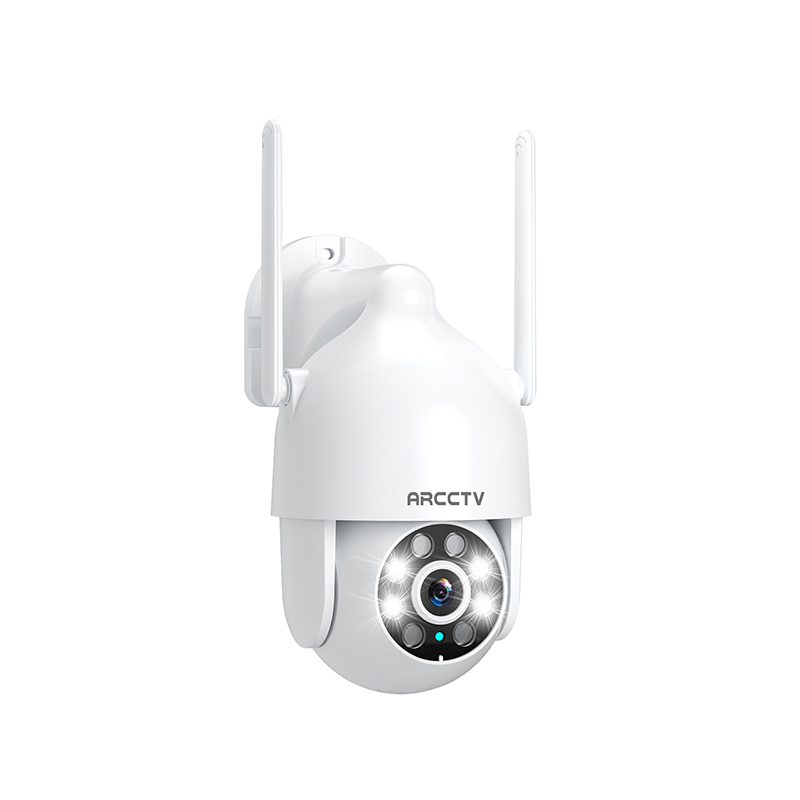
The SN (Serial Number) for your camera is a 10-digit number that serves as the device ID. It is used for both single cameras and NVR systems and can be found on the camera, app, or NVR. The camera is compatible with the Eseecloud and ARCCTV apps.
On the Camera: The 10-digit device ID (e.g., 6443976728) is embedded within this string.
On the App: Check the device listing in the app (as shown in the first image), where the ID (e.g., 6658620885 or 665776113) appears at the top of the screen.
1.2- How to download the APP?
Search for “ARCCTV” app in App Store (iOS) or Google Play (Android) and download it.
2. APP Set Up
2.1- How to Set Up Wi-Fi for the Camera or Add It to the ARCCTV?
Wait for a prompt tone from the camera before tapping "Next".
2.4- How to Share My Camera with Family or Friends / Can It Be Used by Multiple Devices?
Method 1: Share by QR Code (ARCCTV):
Download the same app on another device (Device B) and sign up with a different account.
On your device (Device A), tap "Share" on the main screen.
Set a password to generate a QR code on Device A.
On Device B, tap the "+" icon and scan the QR code.
Method 2: Share by Cloud ID:
Share the 10-digit device ID (from the app) and password with your friend. They can add it by:
Opening the app, tapping "+" > "Other ways to add" > "Add by ID/IP".
Entering the cloud ID (device ID), a preferred name, and the password (default is blank).
Method 3: Invite Shared Users:
Use the ARCCTV app to scan the camera’s QR code or add it using the device ID.
Note: Only one account can use the camera at a time unless shared via these methods.
2.5- How Many Users Can I Share the Camera With?
You can share your camera with an unlimited number of users. However, only 3 users can live view or control the camera at the same time.
3. Password
3.1- What Should I Do If I Forgot the App Account Password?
If you forgot your app account password:
Tap "Forgot Password" on the login screen.
Enter the email or mobile number you used to register, which you can still access.
Tap "Confirm".
Check your email or mobile for the verification code sent to you.
Return to the app.
Enter the "Verification Code".
Set a new password, then retype it to confirm.
Tap "Confirm" to save the new password.
3.2- Why Isn’t My App Receiving a Verification Code?
If you’re not getting a verification code:
Ensure SMS message permissions are enabled for the app on your phone.
Check your email’s spam or trash folder for the code.
If it still doesn’t arrive, register a new account.
3.3- What Should I Do If I Forgot the Camera Password?
If you forgot your camera password:
The password cannot be retrieved. You’ll need to remove the camera from the app, reset it, and add it again. The default password for the camera is blank.
3.4- How to change the camera passwords?
Please check the following steps:
Open Advanced Settings
Click "Setup password"
Then, you can change the password
3.5- Can This Camera Be Linked to a PC Using Windows 10 via an App?
4.1- Will the camera record if it’s not connected to Wi-Fi?
No, the camera will only record when it is connected to a Wi-Fi network.
4.2- Troubleshooting Wi-Fi Connection Issues with Your Camera
Double-check your Wi-Fi password for accuracy.
Move the camera closer to the router to improve the signal.
Reset the camera and delete it from the app, then set it up again.
5. Software / Record issue
5.1- Is Your Camera ONVIF/RTSP Compatible?
Yes, your camera is ONVIF/RTSP compatible, but this feature is only supported by plug-in cameras and NVR systems. ONVIF is an open standard protocol that enables cameras to communicate with each other and network recording devices, though compatibility versions may limit advanced features like motion detection to basic video functionality.
5.2- Why Your Firmware Upgrade Fails with "Upgrading Failed Pls Retry Later"?
If your firmware upgrade fails with a "upgrading failed pls retry later" message, it’s likely because your camera’s ID needs to be added to the whitelist for online upgrades. For ARCCTV app users with a single camera:
Ensure your camera’s Device ID is registered with support to be added to the whitelist. Contact support with your Device ID to enable online upgrades.
5.3- Does This Camera Record Continuously with an SD Card?
No, if your camera is battery-powered, it won’t record continuously even with an SD card installed—it only records when someone passes by. However, if your camera has a power supply, you can set it to record continuously or schedule recording times through the app.
5.4- Does This Camera Record Continuously with Cloud Storage?
No, your camera does not record continuously with cloud storage. Our cloud storage only supports event recording, capturing footage when specific events (like motion detection) occur.
6. SD Card issue
6.1- Why the SD card can't record the video?
If your SD card isn’t recording video, follow these steps to troubleshoot:
Format the SD Card:
Insert the SD card into a card reader and connect it to your computer.
Open the Start Menu and click "This PC".
Right-click the USB Drive and select "Format".
Choose FAT32 or exFAT from the file system drop-down menu if it’s not already selected.
Click "Start" then "OK" to format.
Insert the SD Card:
Power off the camera before inserting the SD card.
Remove and reinsert the SD card to ensure it’s properly seated.
Check Compatibility:
Note the brand of your SD card, as some brands may not be compatible. Send the SD card details to support for verification.
If it still can’t be removed, send your order number and shipping address to Support@anran-cctv.com, and we’ll send a replacement (either a new SD card or camera).
6.8- How Do I Copy Videos from the SD Card to My Computer?
Insert the SD card into a card reader and connect it to your computer, then copy the videos to your desired location.
6.9- What Software Can I Use to Play the Videos?
You can use VLC or Pot Player to play the videos from the SD card.
6.10- Do I Need to Manually Delete Videos from the SD Card?
No, when the SD card is full, the camera will automatically delete the oldest recordings, so manual formatting isn’t required.
You can delete videos from a specific day (but not a specific time) by opening the app, tapping "Live View" > "History or Cloud", selecting the day, and choosing "Delete".
7. Cloud Service issue
7.1- Do You Have to Use Cloud Storage?
No, you don’t have to use cloud storage. Both SD card and cloud storage are optional for your camera.
7.2- How to Purchase Cloud Storage?
To get more cloud storage, follow these simple steps:
Open the app on your device.
Go to the live camera feature.
Tap the settings icon in the top-right corner.
Select "Cloud" and follow the prompts to purchase your storage plan.
7.3- Do I Have to Pay a Monthly Fee to Use the Camera?
Nope! If you use a micro SD card to record locally, you can use the camera completely free—no monthly fees required.
7.4- How Much Is the Cloud Subscription?
The cost of your cloud subscription depends on the plan and duration you choose, as shown in the table below. Pricing varies slightly between Android and iOS:
30-day motion detection video:
Android: $3.49 for 30 days or $34.90 for 1 year
iOS: $4.99 for 30 days or $49.90 for 1 year
15 days of 24-hour video recording:
Android: $4.99 for 30 days or $49.90 for 1 year
iOS: $6.49 for 30 days or $64.90 for 1 year
Additional Info:
For battery cameras, only alert recording (motion detection) is supported.
7.5- Is There Any Other Way to Pay for Cloud Storage?
Currently, PayPal is the main payment method supported for cloud storage. Some users may also be able to use Apple Pay or Google Pay, depending on their device—give it a try to see if it works for you!